
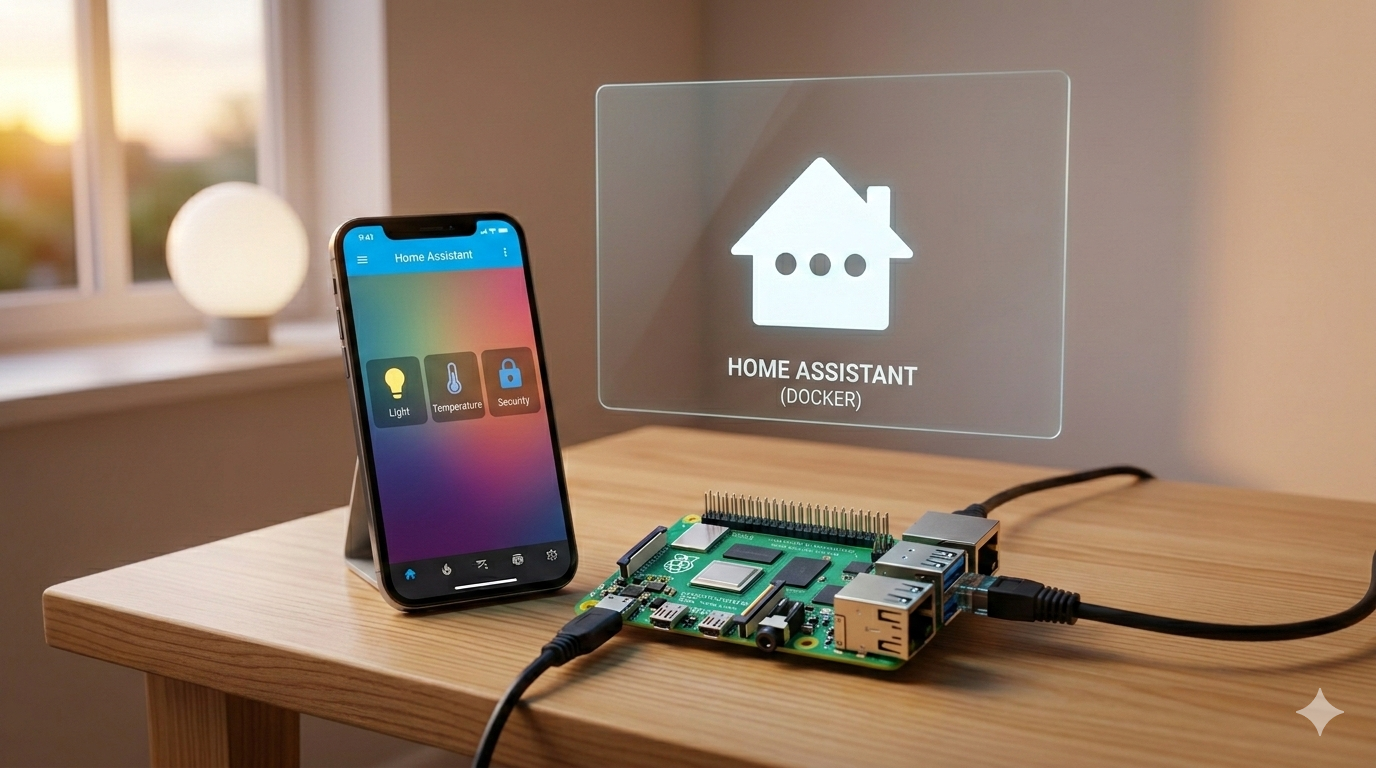
How I Set Up My First Home Assistant on a Raspberry Pi (Using Docker)
When I first decided to build a smart home that doesn’t rely on the cloud and respects my privacy, everyone pointed me to Home Assistant. But to be honest, I was hesitant. I had never really used Linux, didn’t know what “SSH” meant, and was completely intimidated by the idea of staring at a black screen with white text.
If you feel the same way right now, don’t worry—you are in the right place. I’m going to show you exactly how I did it, step-by-step. It might look like hacker movie stuff at first, but I promise, mostly I was just copying and pasting text. If I can do this, you absolutely can too!
Step 1: What I Bought (The Hardware)
Before I even touched a keyboard, I gathered these items on my desk:
- Raspberry Pi 4 (or 5): Think of this as a tiny, low-power computer. I made sure to get one with at least 2GB of RAM (though 4GB is a bit safer for the future).
- Official Power Supply: I was tempted to use an old phone charger, but I learned quickly that the Raspberry Pi needs its official, stable power supply to run 24/7 without crashing.
- MicroSD Card (32GB+): This acts as the “hard drive” for the tiny computer. I went with a reliable brand like SanDisk.
- SD Card Reader: To plug the MicroSD card into my regular computer.
- Network Cable (Ethernet): To connect the Raspberry Pi directly to my internet router for a stable connection.
Step 2: Giving it a “Brain” (Flashing the OS)
Out of the box, my MicroSD card was completely empty. I needed to install an operating system on it so the Raspberry Pi would actually turn on. I decided to use a version without a graphical desktop (no mouse or windows) to save power and resources.
- I put the MicroSD card into my computer using the card reader.
- I downloaded a free program called Raspberry Pi Imager from their official website and opened it.
- I clicked Choose OS, scrolled down to Raspberry Pi OS (Other), and selected Raspberry Pi OS Lite (64-bit).
- Then, I clicked Choose Storage and selected my MicroSD card.
- After clicking Next, a box popped up asking if I wanted to apply OS customization settings. I clicked Edit Settings.
The Crucial Settings I Changed:
This part was important to get right so I could talk to the Pi later:
- Hostname: I typed
smartpi(I just liked the name). - Username and Password: I set the username to
piand created a password. (Tip: Write this password down immediately!) - Services Tab: I checked the box to Enable SSH and selected “Use password authentication”.
What even is SSH? I had to look this up. Because my Raspberry Pi wouldn’t have a monitor or keyboard plugged into it, SSH acts as a secure, invisible tunnel over my home network. It allows my main computer to send text commands to the Pi.
I clicked Save, then Yes to wipe the card. Once it said “Successful”, I popped the card out.
Step 3: Turning it On and Connecting
Now for the fun part—building the actual setup.
- I pushed the MicroSD card into the slot on the Raspberry Pi.
- I plugged the Ethernet cable into the Pi and my router.
- I plugged in the power supply. The Pi showed a red light and a blinking green light. I forced myself to wait exactly 3 minutes for it to fully start up.
Opening the Terminal
Now I had to use that SSH tunnel to talk to the Pi.
- Since I use Windows, I opened the Start menu, typed
PowerShell, and pressed Enter. (If you are on a Mac, you can press Command+Space, typeTerminal, and press Enter).
I took a deep breath, typed the following line exactly as it appears, and pressed Enter:
ssh [email protected](Note: If it says “host not found”, you might have to log into your internet router’s settings to find the IP address of the Pi, and type something like ssh [email protected] instead. I had to do this once!)
The computer asked if I was sure I wanted to connect. I typed yes and pressed Enter. Then, it asked for the password I created earlier.
My Mini-Panic Attack: When I typed my password, absolutely nothing showed up on the screen. No dots, no stars. I thought my keyboard was broken! Turns out, this is a standard Linux security feature to hide the length of your password. Just type it carefully and press Enter.
Step 4: Updating the System
I was finally “inside” my Raspberry Pi! First things first, I made sure it had the latest security updates. I copied this command, pasted it into my terminal window, and pressed Enter:
sudo apt update && sudo apt upgrade -y(Fun fact I learned: “sudo” is like saying “Simon Says” to the computer. It means “do this as the ultimate administrator”).
Lines of text suddenly started flying across my screen like in the Matrix. When it finally stopped and I could type again, I restarted the Pi:
sudo rebootMy connection closed. I waited two minutes, then reconnected by typing ssh [email protected] and my invisible password again.
Step 5: Why I Installed Docker
I decided to install Home Assistant using Docker. Imagine you want to run different programs, but you don’t want them messing with each other’s files. Docker puts each program inside its own digital “shipping container.” This way, my Home Assistant runs perfectly and safely isolated.
I copied and pasted these two commands one by one, pressing Enter after each to install Docker:
curl -fsSL https://get.docker.com -o get-docker.sh
sudo sh get-docker.sh
After waiting for it to finish, I needed to tell the system that my user account (pi) was allowed to use Docker without typing “sudo” every single time.
sudo usermod -aG docker piFor this to take effect, I had to log out and log back in. I typed exit, pressed Enter, and reconnected with my SSH command.
Step 6: Finally Installing Home Assistant
Almost there! I used a tool called “Docker Compose.” It let me write a simple recipe (a text file) telling Docker exactly how to build my Home Assistant container.
First, I created a folder to keep my files organized:
mkdir homeassistant
cd homeassistant
Then, I opened a simple text editor called nano to write my recipe:
nano docker-compose.ymlMy screen changed slightly. I copied the block of text below completely and pasted it into the terminal (a simple right-click usually pastes it):
services:
  homeassistant:
    container_name: homeassistant
    image: "ghcr.io/home-assistant/home-assistant:stable"
    volumes:
      - /home/pi/homeassistant/config:/config
      - /etc/localtime:/etc/localtime:ro
      - /run/dbus:/run/dbus:ro
    restart: unless-stopped
    privileged: true
    network_mode: host
How I saved and exited:
- I held down the CTRL key and pressed X.
- I pressed Y to confirm I wanted to save.
- I pressed Enter to confirm the file name.
Finally, the big moment. I started Home Assistant by typing:
docker compose up -dDocker started downloading Home Assistant in the background. (The -d just means it runs invisibly so I could close the terminal window later).
Step 7: Welcome to My Smart Home!
Seeing it actually work was such a relief! The scary command-line stuff was completely over.
I gave the Raspberry Pi about 5 minutes to set everything up internally. Then, I opened Chrome on my main computer and typed this into the address bar:
http://smartpi.local:8123The Home Assistant welcome screen loaded right up. I followed the on-screen instructions to create my dashboard account, and it immediately started finding my smart TV and Wi-Fi lights.
This was my very first step from “Zero to Something.” If you are following along, let me know what devices you connected first in the comments below!